> ## Documentation Index
> Fetch the complete documentation index at: https://docs.vxplain.com/llms.txt
> Use this file to discover all available pages before exploring further.
# Architecture Diagrams
> Learn how to generate and interpret architecture diagrams in Vxplain to get a high-level overview of your project for both the entire codebase and specific folders.
Vxplain excels at creating visual representations of your codebase to help you understand its structure and flow.
Architecture diagrams provide a high-level overview of your codebase. They show the main components of your application and how they are connected.
## Entire Project
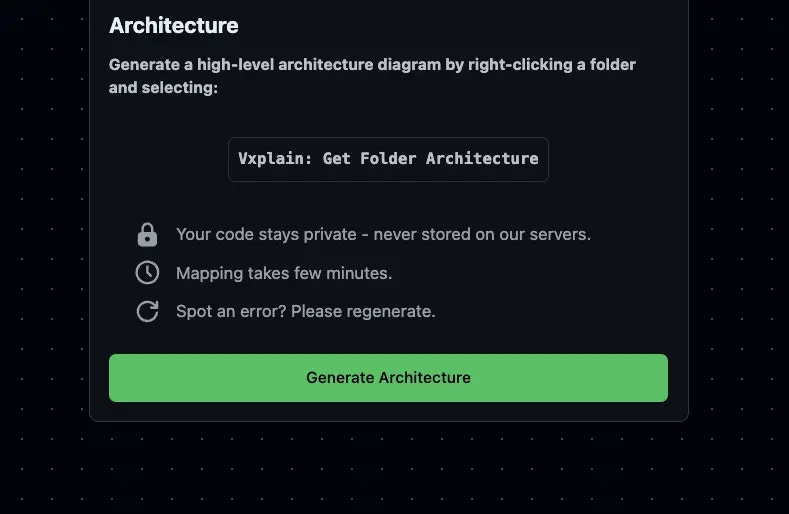
To generate an architecture diagram for the entire project, click on the Vxplain logo in the sidebar and then click `Generate Diagram`.
 ## Specific Folder
If you want to generate a diagram for a specific folder, you can right-click on the folder in the Explorer view and select `Vxplain: Get Folder Architecture`.
## Specific Folder
If you want to generate a diagram for a specific folder, you can right-click on the folder in the Explorer view and select `Vxplain: Get Folder Architecture`.
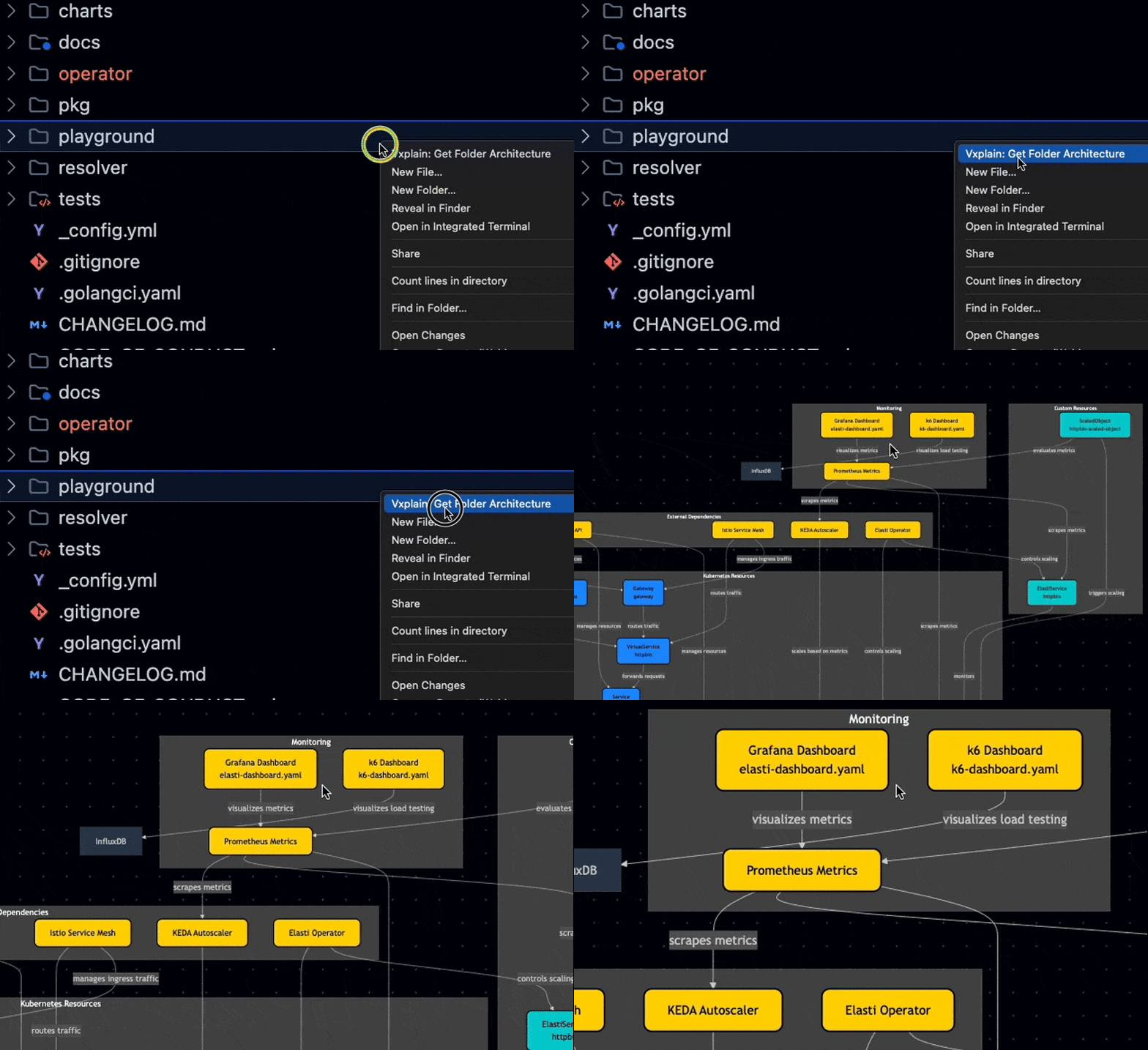 * **Nodes:** Each node in the diagram represents a component, such as a module, class, or function.
* **Edges:** The edges between nodes represent the relationships between components, such as dependencies or function calls.
## Interacting with Diagrams
The diagrams generated by Vxplain are interactive. You can:
* **Zoom and Pan:** Use your mouse or trackpad to zoom in and out and pan around the diagram.
* **Nodes:** Each node in the diagram represents a component, such as a module, class, or function.
* **Edges:** The edges between nodes represent the relationships between components, such as dependencies or function calls.
## Interacting with Diagrams
The diagrams generated by Vxplain are interactive. You can:
* **Zoom and Pan:** Use your mouse or trackpad to zoom in and out and pan around the diagram.