> ## Documentation Index
> Fetch the complete documentation index at: https://docs.vxplain.com/llms.txt
> Use this file to discover all available pages before exploring further.
# Directory Tree
> Learn how to use Vxplain's interactive directory tree to visualize and navigate your project's file structure, open files, and generate diagrams.
Vxplain provides an interactive directory tree that allows you to visualize and navigate your project's full file structure in a clear, organized layout. This is especially helpful for understanding the layout of large and complex codebases.
## Viewing the Directory Tree
To access the Directory Tree view, click on the **Directory Tree** icon in the Vxplain sidebar toolbar. This will display a hierarchical view of all the files and folders in your project.
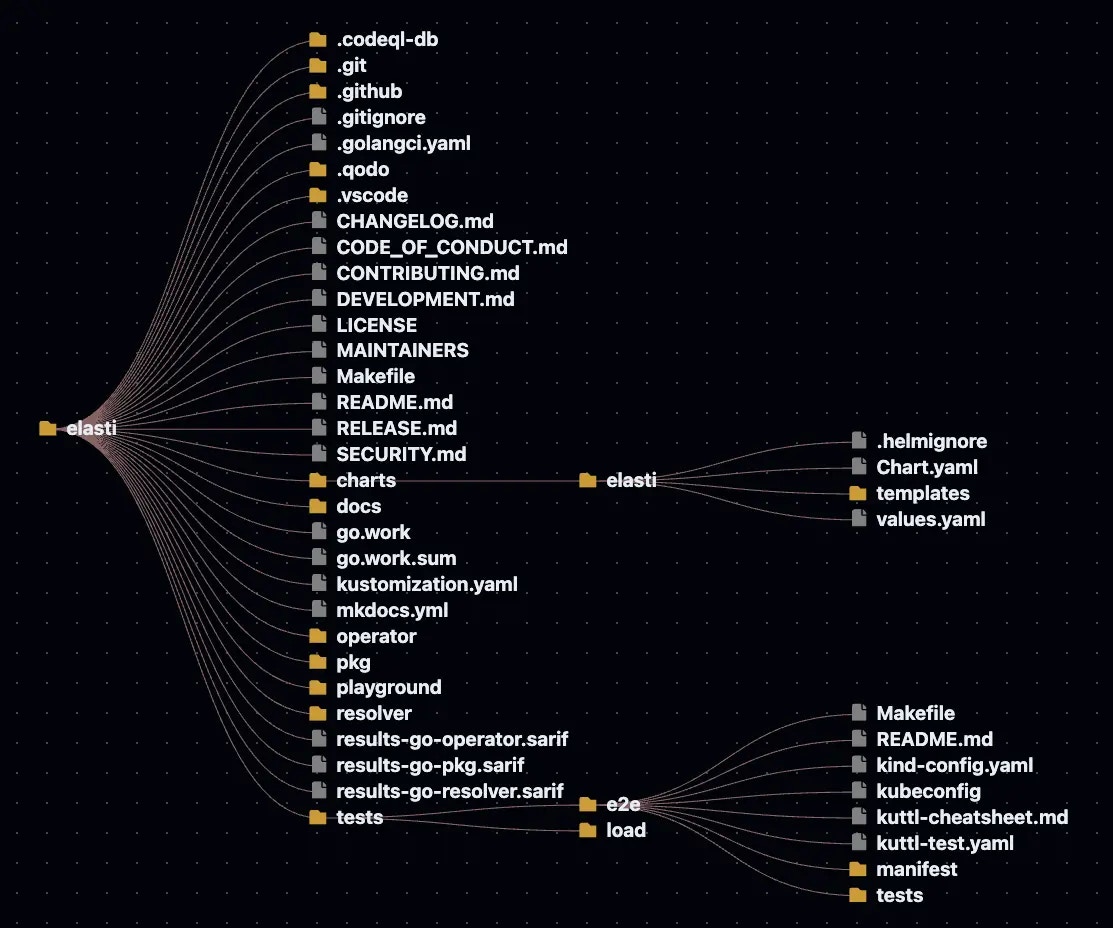 ## Interacting with the Tree
The directory tree is not just a static view; you can interact with it to explore your code:
* **Expand and Collapse:** Click on the folder names to expand or collapse them.
* **Open Files:** Click on the file names to open them directly in the editor.
## Interacting with the Tree
The directory tree is not just a static view; you can interact with it to explore your code:
* **Expand and Collapse:** Click on the folder names to expand or collapse them.
* **Open Files:** Click on the file names to open them directly in the editor.