> ## Documentation Index
> Fetch the complete documentation index at: https://docs.vxplain.com/llms.txt
> Use this file to discover all available pages before exploring further.
# Navigations
> Learn how to navigate the Vxplain extension using the sidebar toolbar, keyboard shortcuts, and page-specific actions to access all features.
You can navigate to the Vxplain using the Vxplain logo in the sidebar or by using the [keyboard shortcut](/src/customization/keyboard-shortcuts) `Cmd+Alt+v` on Mac or `Ctrl+Alt+v` on Windows/Linux.
This will open the Vxplain sidebar, where you can access all the features.
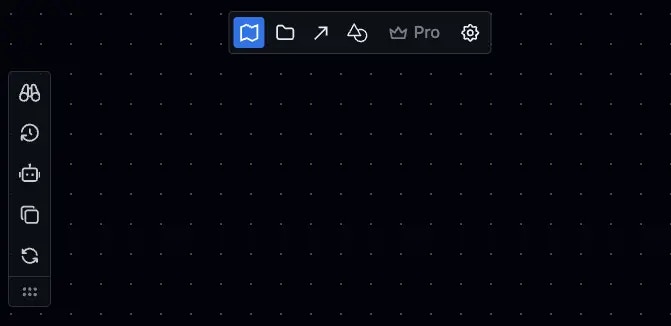 Each icon in the toolbar represents a different page:
* **[Architectures](/src/features/arch-diagrams):** View and generate architecture diagrams.
* **[Directory Tree](/src/features/directory-tree):** Explore your project's file structure.
* **[Call Graph](/src/features/call-graphs):** Visualize function call relationships.
* **[Playground](/src/features/code-to-diagram):** Experiment with code snippets and generate diagrams from them.
## Page-Specific Actions
Similarly, you will find many page-specific actions on the top left of every page.
* **History of diagrams:** Access previously generated diagrams.
* **Copy & Reload:** Copy the current view or reload the data.
* **More...:** Access additional options and actions for the current view.
Each icon in the toolbar represents a different page:
* **[Architectures](/src/features/arch-diagrams):** View and generate architecture diagrams.
* **[Directory Tree](/src/features/directory-tree):** Explore your project's file structure.
* **[Call Graph](/src/features/call-graphs):** Visualize function call relationships.
* **[Playground](/src/features/code-to-diagram):** Experiment with code snippets and generate diagrams from them.
## Page-Specific Actions
Similarly, you will find many page-specific actions on the top left of every page.
* **History of diagrams:** Access previously generated diagrams.
* **Copy & Reload:** Copy the current view or reload the data.
* **More...:** Access additional options and actions for the current view.